Documentation Index
Fetch the complete documentation index at: https://docs.buildingyourdreamstech.com/llms.txt
Use this file to discover all available pages before exploring further.
Objective
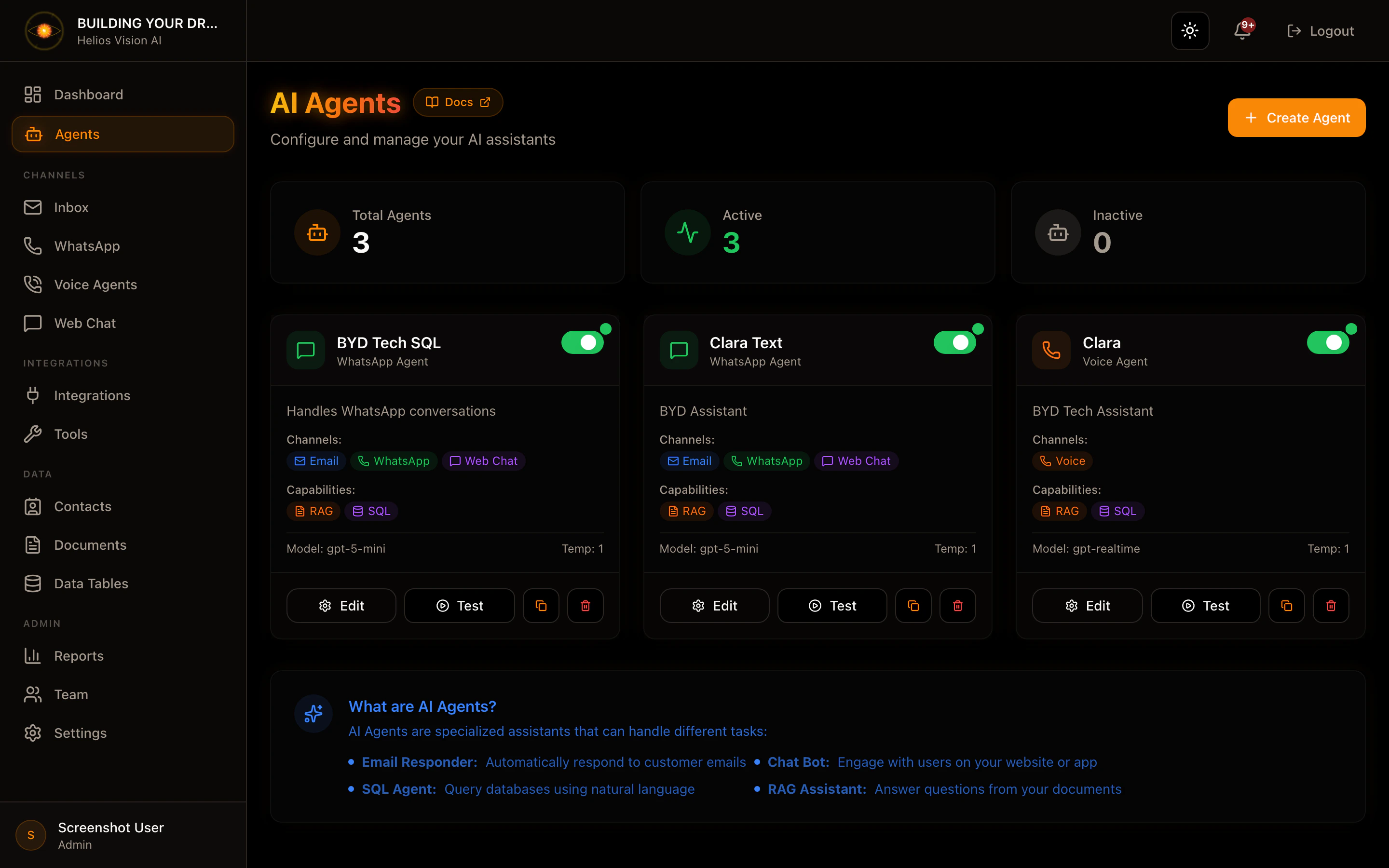
Create and configure AI assistants that operate in Email, WhatsApp, Web Chat and Voice. Each agent defines channels, capabilities and AI configuration.
Access
Sidebar -> Agents
Path: /app//agents
Roles
Prerequisites
- Integrations: at least one LLM provider (OpenAI or Google) if your plan does not include models.
- Documents: required to enable RAG.
- SQL Tables: required to enable SQL.
- Tools: optional, only if you want external actions.
- Voice: if you activate voice, then you must create a Voice Agent with a number in the Voice Agents module.
- Verified email: required to create agents.
Create an agent (Create Agent)
Step by step:
- Under Agents, tap Create Agent.
- Complete the 4 steps of the modal.
Fields:
| Field | Mandatory | Format | Example | Note |
|---|
| Agent Name | Yes | free text | Customer Support Agent | Name visible on the portal |
| Description | No | free text | Answer support questions | Defines tone and role |
- Email: responses in Inbox.
- WhatsApp: conversations in WhatsApp module.
- Web Chat: web widget.
- Voice: telephony (requires Voice Agents + Twilio).
Step 3: Agent Capabilities
Options:
- RAG (Google File Search)
- Requires Google AI API Key and uploaded documents.
- You must select at least 1 document.
- SQL Database Access
- Requires tables in SQL Tables.
- You must select at least 1 table.
- Web Search
- Allow external queries if you have Bing Web Search configured.
-Tools & Actions
- Select tools created in Tools.
Fields and data (RAG):
| Field | Mandatory | Format | Example | Note |
|---|
| Knowledge Base Documents | Yes (if RAG active) | multiple selection | FAQ.pdf | Select relevant documents |
| Field | Mandatory | Format | Example | Note |
|---|
| Allowed Tables | Yes (if SQL active) | multiple selection | orders, inventory | Limit agent access |
| Field | Mandatory | Format | Example | Note |
|---|
| Tools | No | multiple selection | Create Ticket | Only tools created in Tools |
Step 4: AI Configuration
Fields:
| Field | Mandatory | Format | Example | Note |
|---|
| Provider | Yes | dropdown | OpenAI | It depends on your plan and keys |
| Model | Yes | dropdown | gpt-4o | Some models require BYOK |
| Temperature | Yes | 0.0 - 1.0 | 0.7 | Some models set 1.0 |
| Max Tokens | Yes | number | 800 | Limited by model |
| Top P | Yes | 0.0 - 1.0 | 1.0 | Sampling control |
| SystemPrompt | No | long text | You are a helpful assistant | Character limit |
- Next to advance.
- Create Agent to save.
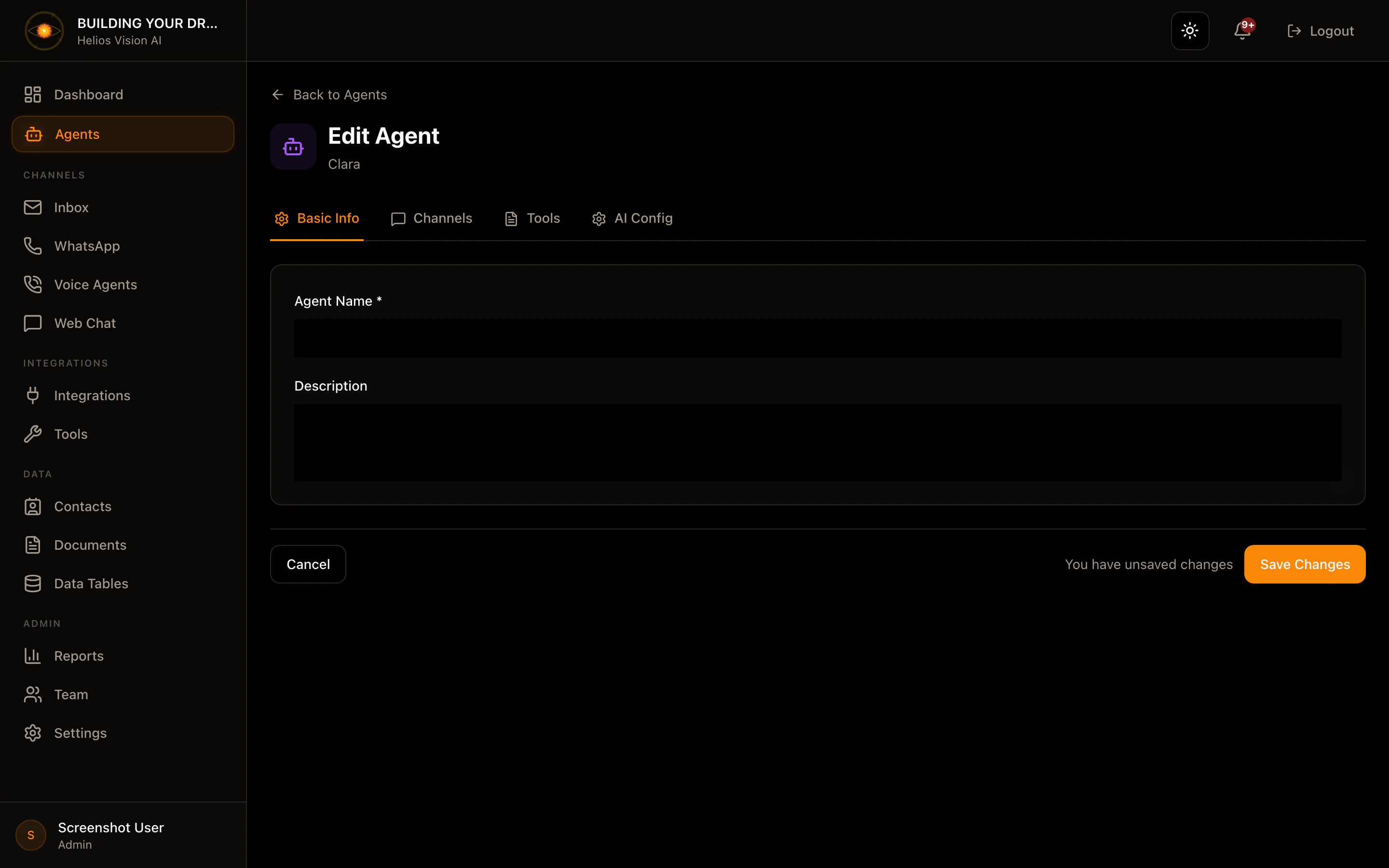
Edit an agent
Path: /app//agents//edit
The form uses tabs:
Basic Info
###Channels
- Email / WhatsApp / Web Chat / Voice
- If you activate Voice, you can define Initial Greeting (max 500 chars)
- RAG: select documents
- SQL: select tables
- Web Search
-Tools & Actions
AI Config- Model, Temperature, Max Tokens, Top P
- Timezone (optional)
-System Prompt
- Insert tools context (insert tool references to the prompt)
- Human Escalation: Detect escalation requests
Actions:
- Save Changes to save.
- Cancel to return to Agents.
Test an agent
Path: /app//agents//test
Main functions:
- Send test messages.
- View traces (RAG, SQL, tools).
- Test voice if the agent has voice enabled.
Activate or deactivate an agent
In the Agents list, use the status toggle on each card.
Delete an agent
On the agent card, use Delete. Confirm the action.
Good practices
- Use a clear name per use case (Support, Sales, Collections).
- Enable only channels that you are going to operate.
- For RAG, upload clean documents with clear names.
- For SQL, limit the tables to those needed.
- Keep the System Prompt below the limit, especially in voice.
Common errors
- Models do not appear: API key is missing in Integrations or the plan does not include the model.
- RAG disabled: Google key or documents missing.
- SQL disabled: no tables.
