Documentation Index
Fetch the complete documentation index at: https://docs.buildingyourdreamstech.com/llms.txt
Use this file to discover all available pages before exploring further.
Objective
Guide the basic configuration of Twilio for WhatsApp and Voice on Helios.Requirements
- Active Twilio account
- Access to Twilio Console
Data you need
- Account SID -Auth Token
- WhatsApp number (sandbox or productive)
- Telephone number (voice)
Step 1: Create account and obtain credentials
- Go to https://www.twilio.com/try-twilio
- Complete the registration and verify phone number.
- In the Dashboard copy:
- Account SID (starts with AC)
- Auth Token (32 chars)
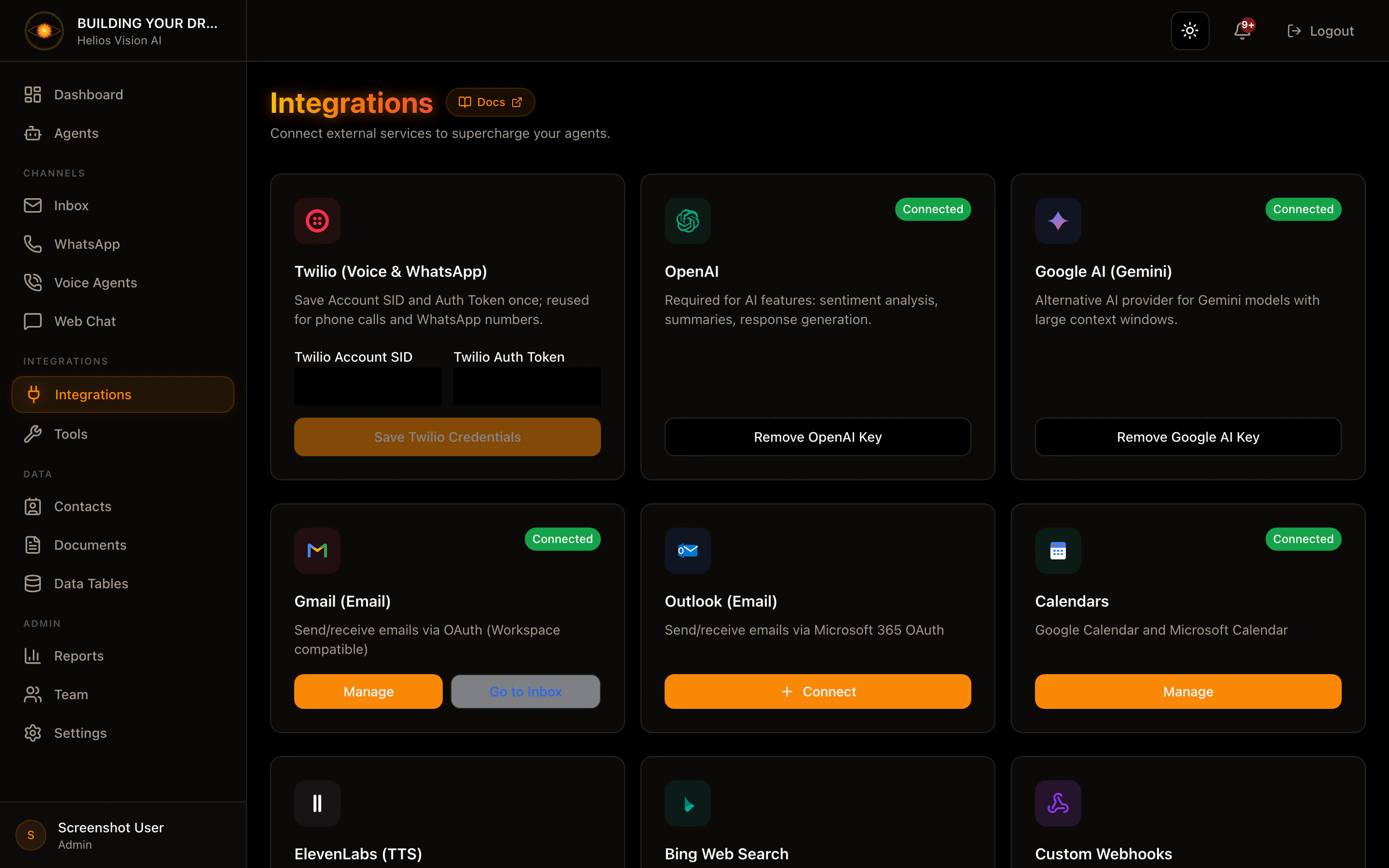
Step 2: Save Twilio to Helios
- Go to /app//integrations.
- In Twilio (Voice & WhatsApp) paste Account SID and Auth Token.
- Tap Save Twilio Credentials.
Step 3: WhatsApp (sandbox or production)
Sandbox (tests)
- In Twilio Console: Messaging -> Try it out -> Send a WhatsApp message.
- Connect your personal number following the sandbox code.
- Copy the WhatsApp Sandbox Number.
Production
- In Twilio Console: Messaging -> Senders -> WhatsApp Senders.
- Request access and complete verification.
- Once approved, use your productive number.
WhatsApp Webhook
Set up the webhook in Twilio:- URL: https://TU_DOMINIO.com/api/whatsapp/webhook
- Method: POST
Step 4: Voice (telephony)
- Buy or use a number in Twilio -> Phone Numbers.
- In the number configuration:
- Voice webhook URL: https://TU_DOMINIO.com/api/voice/webhook
- Method: POST
- (Optional) Status callback: https://TU_DOMINIO.com/api/voice/status-callback
Step 5: Connect number in Helios
- WhatsApp: /app//whatsapp -> Connect New Number
- Voice: /app//voice-agents -> Create Voice Agent
Good practices
- Use a separate number for testing and production.
- Verify that webhooks respond 200.
- Check logs if messages or calls do not arrive.
Common errors
- Webhook does not arrive: incorrect URL or without HTTPS.
- Invalid signature: Check saved Auth Token.
- Number does not appear: check that it is active in Twilio.
Screenshot